 Level my RV
What you need
Level my RV runs on iPhone, iPad and Apple Watch (iOS 17 and watchOS 10 or later). You can use it two ways:
- One device: put it on the RV floor and read the numbers there. The app never asks for Bluetooth in this case.
- Two devices: leave one on the floor as the sensor, and watch the numbers from outside on another iPhone, an iPad or your Apple Watch. The devices talk over Bluetooth, so you don't need cell service or Wi-Fi.
The two-device setup is where Level my RV shines. You can watch the level from the driver's seat while backing onto levelers, or from the tongue jack while you crank it.
The Home screen has two large buttons:
- Level this RV (“Put this device on the RV floor”) is for the device that goes on the floor. It becomes the sensor.
- Watch from here (“Show measurements sent by another device”) is for the device in your hand. It shows what the sensor sends.
Under them, two rows show where you stand and open the right page: Set up your RV (later, a summary of your RV) and Device in a case or camera bump? (later, Calibration done with the date).
The first time you open the app, a short Welcome sheet explains both uses. Tap Got it to close it; it isn't shown again.


Set up your RV
To tell you how many inches (or centimeters) to raise each side, Level my RV needs to know what kind of RV you have and how big it is. You only do this once, and there's no keyboard involved.
Tap Set up your RV on the Home screen. Or simply tap Level this RV: if your RV isn't set up yet, the setup form appears right there.
- Choose the RV type: Trailer, Fifth Wheel or Motorhome.
- Choose the unit: Inches or Centimeters. If you switch units later, the values you entered are converted for you.
- Spin the wheels to enter your RV's length and width, in feet and inches or in meters and centimeters. A picture under each one shows exactly what to measure (see How to measure your RV).
- In the setup form, tap Save. It becomes available once the length and width are entered.
Afterwards, the Home screen shows a summary such as Travel trailer · 24 ft 6 in × 8 ft. Tap it, or the gear icon on the level screen, to open Settings. Settings saves as you change values, like the iPhone's own settings, so there's no Save button there. It also holds the sharing switch, the device offset and its status, and the app version.
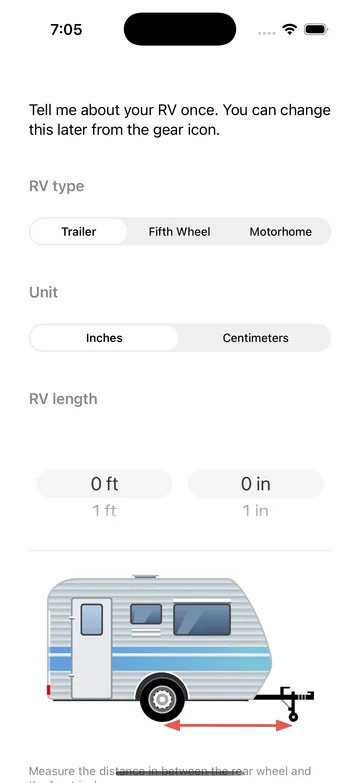

How to measure your RV
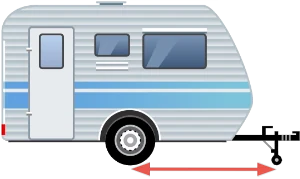
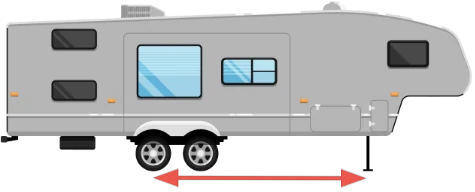
Use a tape measure. The diagrams below, also shown in the app under the wheels, show exactly where to measure.
Travel trailer
Length: measure from the wheel to the front (tongue) jack, front to back.
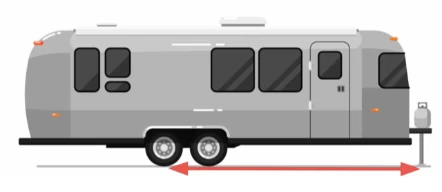
If you have a dual-axle trailer, measure from the rear wheel to the front jack:
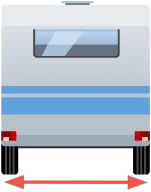
Width: measure the distance between the two tires, side to side.
Fifth wheel
Measure the same way as a travel trailer, but measure from the rear wheel to the front jack, not to the king pin.
Motorhome
Enter the vehicle's wheelbase (front axle to rear axle) as the length, and the distance between the two tires as the width.
Device offset (calibration)
A case or the camera bump can stop a phone from lying truly flat, so every measurement is off by the same small angle. Record that angle once, and Level my RV removes it from all future measurements. This step is optional but recommended for the device you put on the floor.
Open the Device offset page from the Device in a case or camera bump? row on the Home screen, or from Settings. Then do one of the following:
- At the campsite: level your RV the traditional way with a bubble level, then put the device on the RV floor.
- At home: put the device on a surface you know is level, such as a countertop you've checked with a bubble level.
Watch the Current tilt numbers (pitch and roll, in degrees) until they settle, then tap Record offset and keep the device still for two seconds while it shows Hold still…. If the device moved, the app tells you so you can try again.
The page always shows where you stand: Not recorded. Measurements assume the device lies flat., or Recorded with the date and the offsets, along with Record again and Reset. The Home screen row then reads Calibration done with the date.

Share with a second device
You only need sharing to watch the measurements on another iPhone, an iPad or an Apple Watch. The level itself never needs Bluetooth, and the app never asks for it when it opens. On the device that goes on the floor:
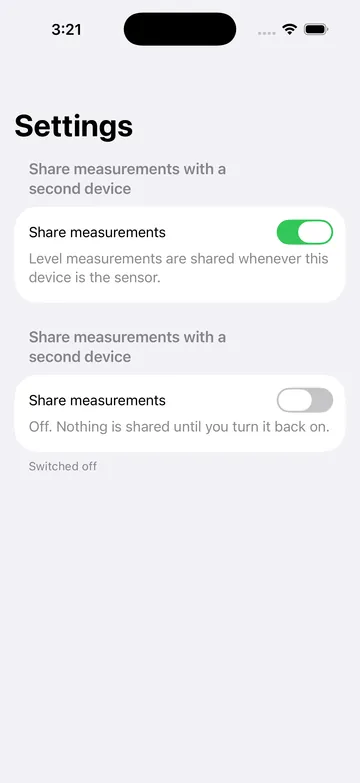
- Open Settings (the RV summary on the Home screen, or the gear icon). The setup form offers it too, the first time.
- Under Share measurements with a second device, tap Enable.
- When iOS asks, allow Level my RV to use Bluetooth.
From then on, that block is a Share measurements switch. Turn it off to stop sharing right away; the app remembers your choice. Turn it back on and sharing resumes without any prompt. The switch doesn't change the Bluetooth permission in iOS.
On the level screen, a small antenna icon at the top right and a line under the title tell you what sharing is doing. The antenna pulses while it waits and shows a count once displays are connected. When there's something to fix, tap the line to go there.
| Status line | What it means |
|---|---|
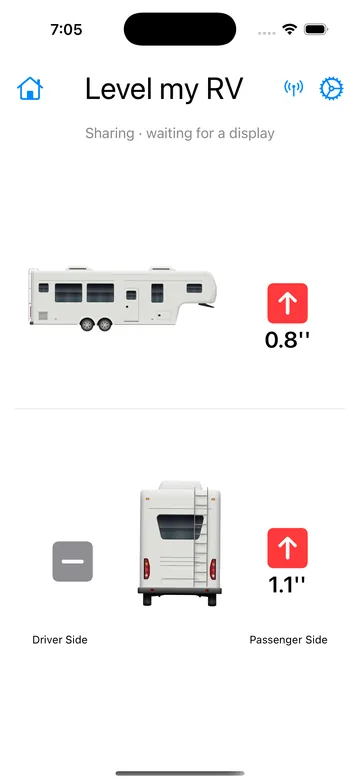
| Sharing · waiting for a display | Sharing is on. No other device has connected yet. |
| 1 display connected | A second device is receiving the measurements. The number goes up if more than one device is watching. |
| Sharing off · Enable in Settings › | Sharing has never been turned on on this device. |
| Sharing off · Turn on in Settings › | You switched sharing off in Settings. |
| Bluetooth not authorized · Open Settings › | Bluetooth permission was refused. The line opens the app's page in iOS Settings, where the Bluetooth switch is. |
| Bluetooth is off · turn it on in Control Center | Bluetooth is switched off on this device. |
Level a trailer or fifth wheel
Open the app on the sensor device, tap Level this RV, and lay it flat on the RV floor with the top of the phone pointing toward the front of the RV. While you're still holding it, the app shows an arrow labeled Front of the RV and reminds you to place it on the floor facing forward. If you recorded the offset on a countertop, you can use that countertop instead.
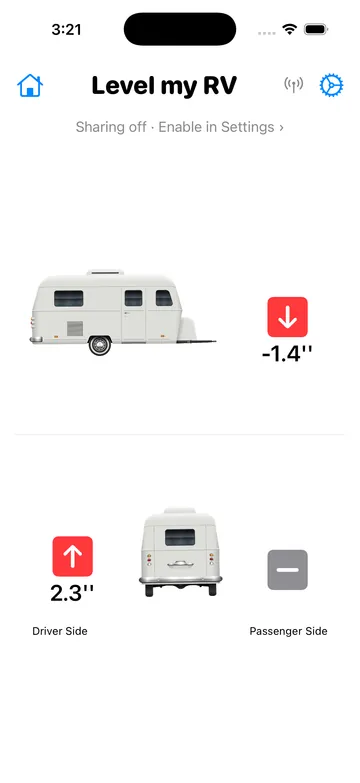
The level screen has two halves:
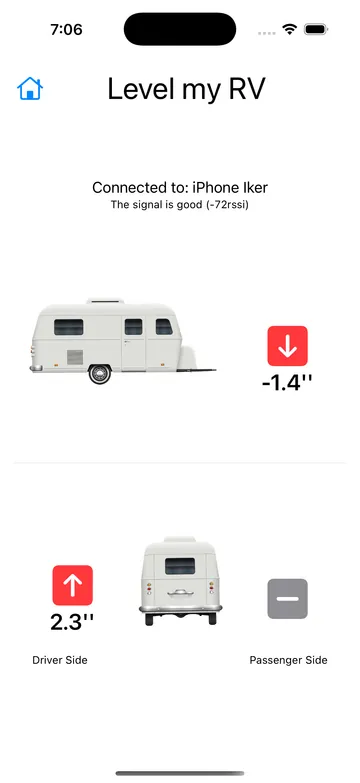
- Top: a side view with the tongue jack (front jack on a fifth wheel). An up arrow means raise the front, a down arrow means lower it, and the number tells you how much.
- Bottom: a rear view with Driver Side and Passenger Side. A red up arrow shows which tire to raise and by how much.
Green means level. A ? in place of a number means there's no valid reading yet: the device is still in your hand or isn't lying flat. Put it down flat and the numbers appear, on this screen and on every display.

1. Side to side first
While the trailer is still hitched, level it side to side. The app tells you which tire to put blocks under and how high it needs to go.
- For a small, even amount (1 or 2 inches), stack one or two square blocks. They're usually about 1 inch thick each.
- For a bigger or uneven amount (for example 3.7 inches), a curved leveler works best, because you control the lift by how far you drive onto it.
This is where a second device helps most. Take it to the driver's seat, tap Watch from here, and back slowly onto the leveler until that side turns green.
2. Then front to back
Chock your wheels and unhitch. Now raise or lower the tongue jack (or the front landing jacks on a fifth wheel) while you watch the level on the device in your hand. When the front turns green, you're done.
Level a motorhome
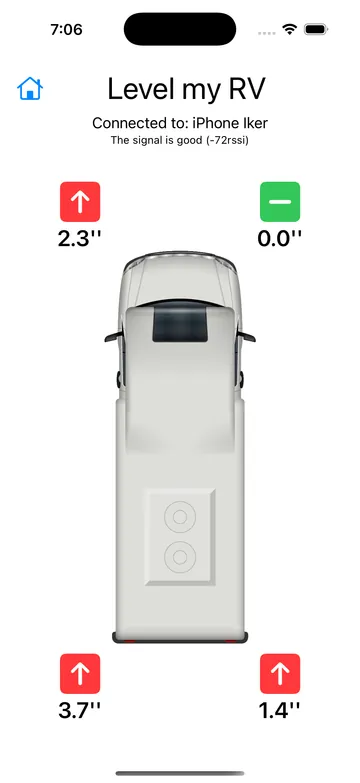
For a motorhome, Level my RV shows all four wheels from above. It finds the wheel that sits highest and sets it to 0 (shown in green). Every other wheel shows how much it needs to be raised to match.
Start with the wheel that needs the most lift, then work your way down. Drive onto blocks or use your leveling jacks while you watch the numbers on a second device or on your Apple Watch.
Watch from here & Apple Watch
On the device you're holding:
- iPhone or iPad: open Level my RV and tap Watch from here.
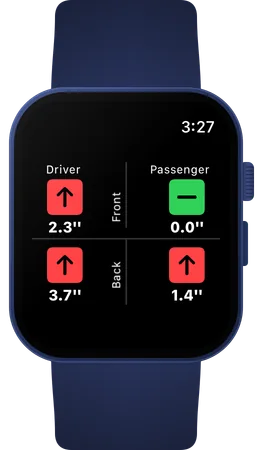
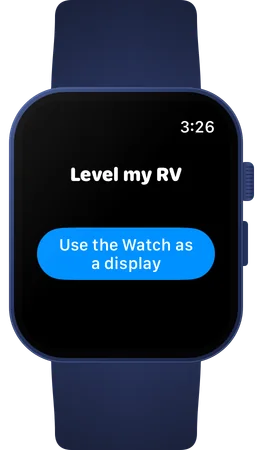
- Apple Watch: open Level my RV on the Watch and tap Use the Watch as a display.
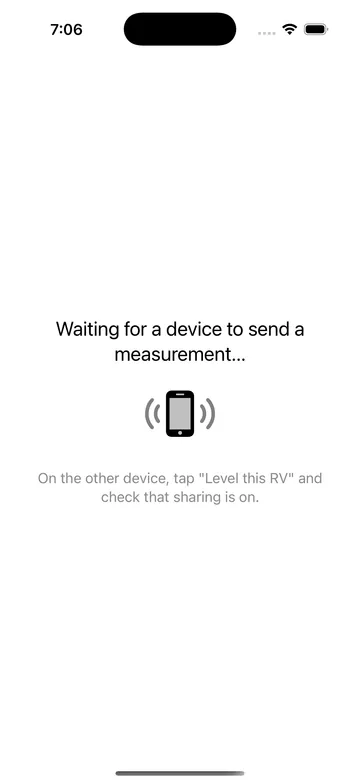
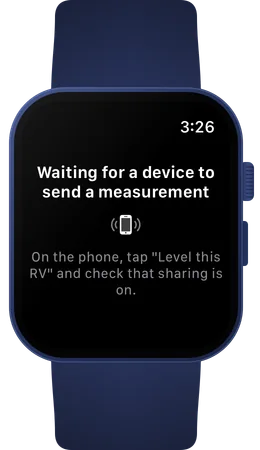
While it looks for the sensor, it shows Waiting for a device to send a measurement… with a pulsing phone icon. Once connected, it shows the same arrows and numbers as the sensor. On iPhone and iPad, the screen also shows which device it's connected to and how good the Bluetooth signal is.
If you walk out of range, or your Watch goes to sleep, it reconnects on its own when you come back. If the Watch shows Move watch or tap to wake up, just raise your wrist or tap the screen.
Unlike the sensor, the display device does need Bluetooth. If it can't use it, it says why on a full screen (see Troubleshooting).
Troubleshooting
“Waiting for a device to send a measurement…”
The display device is searching for a sensor. If nothing is found after 15 seconds, it adds: On the other device, tap “Level this RV” and check that sharing is on. On the sensor device:
- Make sure Level my RV is open on the Level this RV screen.
- Check the line under the title. It should read Sharing · waiting for a display or 1 display connected. If it says Sharing off, tap it and turn sharing on. See Share with a second device.
- Bring the two devices closer together. Bluetooth range is typically 30 to 50 feet, and the RV's walls can shorten it.
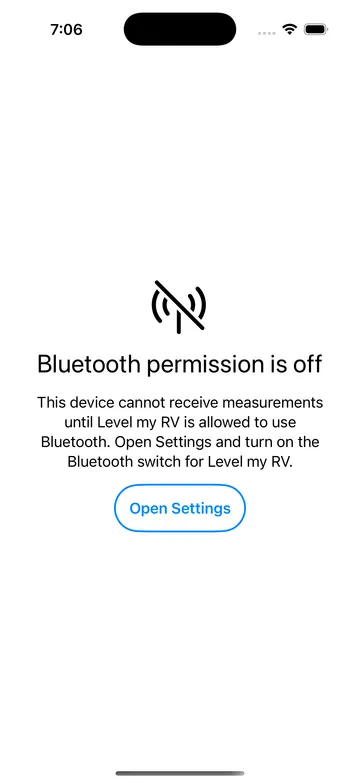
“Bluetooth permission is off”
Level my RV isn't allowed to use Bluetooth on this device, so it can't receive measurements. Tap Open Settings and turn on the Bluetooth switch for Level my RV. On the sensor device, the same problem shows as Bluetooth not authorized · Open Settings › under the title. You only need this permission for sharing between devices; the level itself works without it.
On Apple Watch, the message reads Level my RV is not allowed to use Bluetooth on this watch. Allow it in the Watch's Settings under Privacy & Security › Bluetooth.
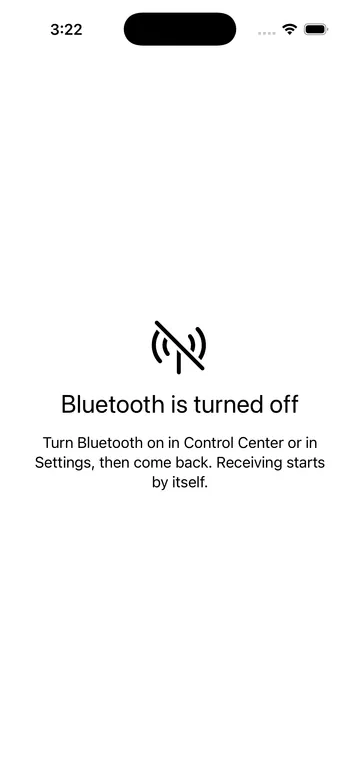
“Bluetooth is turned off”
Bluetooth is switched off. Turn it on in Control Center or in Settings, then come back to the app; receiving starts by itself. On the sensor device, the line under the title reads Bluetooth is off · turn it on in Control Center.
The numbers look a little off
- Record the device offset, especially if your phone has a case or a camera bump.
- Put the device in the same spot each time, flat on the floor, facing the front of the RV.
- Double-check the RV type and size in Settings. A length or width that's off by a lot will scale every number.
Did my feedback go through?
After you tap Submit in Feedback or Question?, the app tells you whether your message was sent. If it wasn't, you're probably offline; try again once you're back in coverage.
Tips
- Find a level spot first. If you're boondocking and don't need to park in an exact spot, drive around slowly with the second device in hand (or on your wrist) to find the most level ground.
- Set up at home. Enter your RV size, record the device offset and turn on sharing before your trip, so you're ready when you pull in.
- Leveling alone? Prop the second iPhone on the dashboard, or use your Apple Watch, so you can see the level without leaving the driver's seat.
Still stuck? See Support, or send a message from the app with Feedback or Question? on the Home screen.
What's new in 2.2
Version 2.2 redesigns everything around the level. The level views and the measurements themselves are unchanged, and 2.2 devices work with 2.1 devices on the other end.
- Bluetooth is optional. No permission prompt at launch. Turn sharing on or off from Settings; you only need it for a second device. See Share with a second device.
- A clearer Home screen. Two large buttons that explain themselves, plus rows for your RV and the device offset.
- Setup with wheels. Enter length and width without a keyboard, right where you need it. See Set up your RV.
- Device offset explained. A dedicated page with the live tilt and a clear status. Offsets from 2.1 carry over. See Device offset.
- A fresher look with smoother transitions. All motion follows the iOS Reduce Motion setting.
- Feedback confirms whether your message was sent.
If you updated from an earlier version, a one-time What's New sheet sums this up the first time you open the app.
